
Key takeaways
- Compare external drive picks for a home tech corner, with honest notes on real backups, transfer speed, capacity, rotation, and encryption basics.
An external drive feels like insurance the moment it is plugged in, and that feeling is exactly where most home backup plans go wrong. A drive sitting beside the keyboard holds a copy of your files, and a copy is genuinely useful: it protects against a deleted folder, a corrupted file, and a laptop that refuses to boot on a workday morning. What it does not protect against is everything that can happen to the desk itself. One knocked-over mug, one dropped drive, one break-in, and the computer and its only copy are gone in the same minute. Choosing an external drive well starts with understanding what it actually is: one piece of a backup habit, not the habit itself.
A note on the picks below, stated plainly: none of the five products in this guide is itself an external drive. They are the supporting cast of a home tech corner — the rail that keeps light leads off the floor, the automatic bulbs that light the room without a switch hunt, the clamp that holds a small light or camera over the desk, the padded case that carries the laptop, and the drops that keep a long organizing session comfortable. The buying guidance in the How to Choose section covers the drive decision itself, and the picks cover the corner the drive will live in.
As an Amazon Associate, we earn from qualifying purchases.
How to Choose an External Drive for a Home Tech Corner
A Copy Is Not a Backup
A backup means the data exists in two places at once. If the only copy of your photo library lives on an external drive because the laptop drive was too small, that library is not backed up at all — it is simply stored somewhere fragile. The rule worth memorizing is simple: a file is backed up when deleting or destroying one device still leaves the file intact somewhere else. Buy the drive with that rule in mind. Its job is to be the second home for your data, or the portable third home, never the only home. Households that internalize this stop asking which single drive is safest and start asking how their copies are arranged, which is the question that actually prevents loss.
Speed Is Interface Math, and the Slowest Link Wins
Transfer speed claims describe a best case under ideal conditions, and real transfers run through three bottlenecks in a chain: the drive inside the enclosure, the port on your computer, and the cable connecting them. An older port throttles a fast drive. A bargain cable throttles both. Large single files move far faster than thousands of small ones, so a photo library of raw files and a folder of documents will never transfer at the same pace on the same hardware. Judge a drive by the whole chain you actually own, not by the biggest number printed on the box, and expect real-world copies of mixed files to land well below the headline figure.
Spinning Platters Versus Solid State
Spinning drives hold more for the money, which makes them the natural choice for big, mostly stationary archives: video projects, photo libraries, and years of documents. Their weakness is mechanical. A spinning drive hates being moved while it is running, dislikes bumps at any time, and should be treated like the delicate instrument it is — parked on a stable surface, never carried loose in a bag while warm from a session. Solid-state drives shrug off bumps, run silently, and sip power, which suits a drive that travels between rooms or buildings. They cost more per unit of capacity, so the honest split is this: spinning for the big archive that stays home, solid state for the smaller working copy that moves.
Capacity Follows the Library, Not the Hope
Photo and video libraries grow in one direction. Nobody’s archive shrinks, and a drive bought exactly at today’s size becomes a juggling problem within a couple of years. Add up what you have, look honestly at how fast it grew over the last two years, and buy for the library you will have, not the one you wish you had. A drive that runs nearly full also slows down and leaves no room for the temporary copies that safe file management requires. Leaving comfortable headroom is not waste; it is what keeps the backup habit painless enough to actually maintain.
Rotation Is What Makes It a Backup
A drive that lives permanently plugged in beside the desk shares every risk the computer has: the same spill, the same power surge, the same thief, the same house fire. The rotation habit fixes this. Keep two drives, back up to one, then swap it with the second drive stored somewhere else — a drawer at work, a relative’s house, any genuinely different location. The off-site drive is weeks out of date at worst, and weeks-old data is infinitely better than none. Rotation sounds like extra effort, but it is a five-minute swap on a schedule, and it is the single step that turns a hopeful copy into an honest backup system.
Encryption for Drives That Travel
A drive small enough to carry is small enough to lose, and a lost unencrypted drive is a data breach in a pocket: tax documents, family photos, saved passwords in a spreadsheet, all readable by whoever picks it up. If a drive ever leaves the house, turn on encryption or at minimum a password lock before the first trip, not after the first scare. Built-in operating system encryption tools handle this well and cost nothing but a few minutes. The trade-off is real — forget the password and the data is gone by design — so store the password somewhere safe, separate from the drive itself.
SANY DAYO Jewelry Organizer With 30 Hooks

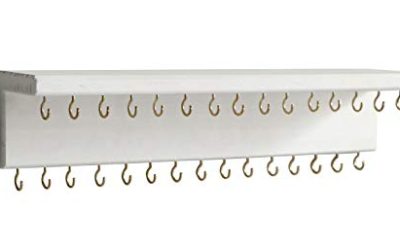
This organizer is, plainly, a jewelry organizer: a rail with thirty hooks meant for necklaces and bracelets. In a tech corner it earns its place only as a light-duty rail for light leads — a charging cable, a pair of earbuds, a lanyard, a small card you reach for daily. That is the whole of its job here, and it should not be stretched further. It is never a mount for power strips, charging bricks, consoles, or heavy tools, and one point deserves emphasis: an external drive never hangs from a hook rail. Drives sit flat on a stable surface, full stop.
Specs
- Thirty hooks on a single rail for light items
- Suited to necklaces, bracelets, and similarly light accessories
- Works as a light-duty rail for light charging leads and small cards
- Not rated for power strips, bricks, consoles, drives, or heavy tools
HEKEE Dusk to Dawn Bulbs A19

These are plain automatic sensor bulbs: they sense darkness and switch themselves on, then switch off when light returns. They are explicitly not smart bulbs — no app, no voice control, no schedules — and they are not task lighting for reading fine print or soldering at the bench. Their role in a tech corner is background light that simply handles itself, useful in a hallway, porch, or the corner of a room where the drive shelf lives. One behavior to know: in windowless rooms with little natural light, they may stay on far longer than expected, because the sensor is doing exactly what it was told. Check the enclosed-fixture rating before using one inside a covered fitting.
Specs
- A19 bulbs with a built-in dusk-to-dawn light sensor
- Automatic on at dark, off at daylight, no switch or app needed
- Plain bulbs only; not smart bulbs and not task lighting
- Verify the enclosed-fixture rating before use in covered fittings
ULANZI Super Clamp

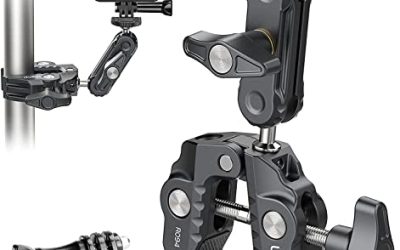
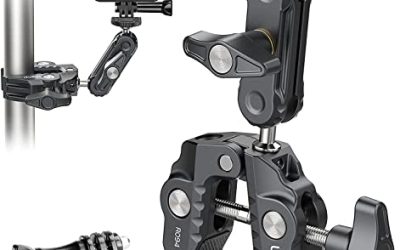
The super clamp is a mount only. It has no light, no phone, and no camera of its own; it grips an edge and holds whatever compatible accessory you attach to it — a small light over the desk, a webcam at a better angle, a phone for overhead shots of paperwork. Used well, it keeps the backup corner tidy by lifting small gear off the desk surface. Two rules keep it honest: never clamp a screen, because jaw pressure can crack a panel, and pad the jaws when gripping finished wood or anything you would rather not mark.
Specs
- Clamp-style mount for compatible lights, phones, and cameras
- Mount only; includes no light, phone, or camera
- Grips desk edges and shelves to free up surface space
- Pad the jaws on finished surfaces; never clamp a screen
tomtoc Laptop Case

A padded soft case for carrying a laptop, and a sensible travel partner for the machine whose files the external drive protects. Be clear about its limits: it is not a hard shell, so it softens bumps and scratches rather than surviving serious drops, and it is not waterproof, so rain means keeping it under cover. The detail that decides satisfaction is internal dimensions — measure your laptop and compare against the inside measurements, not the headline size, and leave a little room if you carry a charger alongside.
Specs
- Padded soft case designed for laptop carry
- Softens everyday bumps and scratches; not a hard shell
- Not waterproof; protect it from rain
- Fit depends on internal dimensions, so measure before ordering
Hi-Lyte Electrolyte Drops
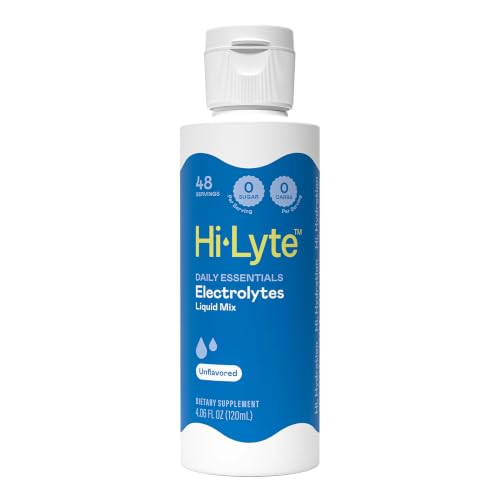
Backup organization is thirsty, sedentary work — hours of sorting folders and labeling drives at the desk. These drops are a modest addition to a glass of water for sessions like that, and modest is the correct word: this is not a medicine, not an energy product, and not a treatment for anything. Plain water is fine for most people most of the time, and nothing here replaces it. Follow the label directions for serving size, and if you have a medical condition or a restricted diet, check with a clinician before making electrolyte drinks a daily habit.
Specs
- Electrolyte drops added to water by the label directions
- Intended for everyday hydration support during long desk sessions
- Not a medicine, energy product, or treatment
- Plain water remains fine for most people; clinician note applies for medical conditions or restricted diets
Frequently Asked Questions
Is one external drive enough to call it a backup?
Only if the same files also exist somewhere else. A backup means the data lives in two places, so a drive holding the second copy counts, while a drive holding the only copy is just storage in a fragile box. The strongest simple setup pairs the computer’s internal copy with one external drive, then rotates a second drive to a different location.
Why does my external drive transfer slower than expected?
Because the slowest link in the chain wins. The drive mechanism, the computer’s port, and the cable each cap the speed, and an older port or a poor cable will throttle a fast drive. Mixed folders of many small files also move far slower than one large file of the same total size, which is normal behavior rather than a fault.
Should the archive drive be spinning or solid state?
For a big archive that stays parked at home, a spinning drive holds more for the money and its fragility rarely matters on a stable shelf. For a drive that travels or gets handled often, solid state’s tolerance for bumps is worth its higher cost per capacity. Many households end up with one of each, which fits the rotation habit neatly.
Does an external drive really need a password?
If it ever leaves the house, yes. A lost unencrypted drive hands your documents and photos to a stranger, while encryption or a password lock makes the same loss a minor inconvenience. Set it up before the first trip, and keep the password recorded somewhere safe and separate from the drive.
Final Verdict
Choose the drive by the system around it: enough capacity for the library you are growing into, the right build for whether it stays home or travels, and encryption the moment it leaves the desk. Then make it a backup in fact, not just in feeling, by keeping copies in two places and rotating one drive off-site. The five picks above will not store a single file, and this guide has not pretended otherwise — what they do is keep the corner where your drives live lit, tidy, reachable, and comfortable, which is the unglamorous environment where good backup habits actually survive.
Product and ASIN Reference
| Product | ASIN |
|---|---|
| SANY DAYO jewelry organizer 30 hooks | B07QFZSVQW |
| HEKEE dusk to dawn bulbs A19 | B07HGZMYZ4 |
| ULANZI super clamp | B09C882D4M |
| tomtoc laptop case | B073TVX735 |
| Hi-Lyte electrolyte drops | B01MXDAHIB |
FAQ
Is one external drive enough to call it a backup?
Why does my external drive transfer slower than expected?
Should the archive drive be spinning or solid state?
Does an external drive really need a password?
More from Amazon
Programs that pair well with the guide above. Offers and eligibility are set by Amazon and may change.
Free shipping on eligible items, Prime Video and more. Eligible new members can start with a free trial.
Start a Prime free trialAudiobooks and podcasts to listen to on the go. Eligible new members can start with a free trial.
Try Audible freeAd-free music streaming. Eligible new subscribers can start with a free trial.
Try Music Unlimited freeA free business account with business pricing and bulk-buying tools for work, shop or home office.
Create a business accountAs an Amazon Associate we earn from qualifying purchases.



Write Your Review
No reviews yet. Be the first to share your experience!