Our Top Picks
A good docking station turns a single USB-C or Thunderbolt cable into an entire desk setup — multiple monitors, Ethernet, charging, and peripherals, all without a tangle of separate cables running to the laptop each morning. Here are five real options across different budgets.
Our top picks
1. CalDigit TS4 docking station
The most port-dense Thunderbolt 4 dock in its class, built for people who want everything on one dock and don’t want to think about it again — multiple display outputs, network, storage, and peripheral ports all in a single enclosure. It’s priced like a premium purchase, but it has one of the longest consistent reliability track records of any dock in this category.
2. Anker 575 USB-C docking station
A strong mid-range pick that balances port count with price — multiple display outputs, USB-A and USB-C data ports, and pass-through charging, aimed at a dual-monitor home office setup without the premium Thunderbolt price tag.
3. UGREEN Revodok Pro 210
The budget entry point on this list — ten ports on a single USB-C host connection with up to 100W pass-through charging, at a fraction of the cost of the premium options. A sensible choice if your needs are a single external monitor plus a few peripherals rather than a full triple-display setup.
4. Plugable USB-C triple display docking station

Built around DisplayLink technology, which matters if your laptop’s GPU natively supports fewer external displays than you want — DisplayLink docks add virtual display support beyond that hardware limit. This makes it one of the few realistic ways to run three monitors from a laptop that officially only supports one or two.
5. Dell WD19S docking station
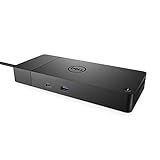
A reliable, business-oriented dock frequently used in corporate laptop fleets, which also makes it a solid secondhand or budget-business pick for a home office — dual display support, Ethernet, and a track record of stable driver support across Windows updates.
6. Kensington SD5000T Thunderbolt 3 docking station
Another business-grade option, positioned similarly to the Dell WD19S but built around Thunderbolt 3 rather than USB-C, with dual 4K display support and a long history of IT-fleet deployments. Worth considering specifically if you already own Thunderbolt-only peripherals (certain audio interfaces or storage enclosures) that need the full Thunderbolt protocol rather than a DisplayLink dock’s video-only workaround.
How to choose between them
- Want the most ports and don’t want to think about it again: CalDigit TS4.
- Standard dual-monitor home office, reasonable budget: Anker 575.
- Just need one extra monitor and a couple of peripherals: UGREEN Revodok Pro 210.
- Laptop’s GPU won’t natively support the monitors you want: Plugable’s DisplayLink dock.
- Corporate-style reliability on a budget: Dell WD19S.
- Need true Thunderbolt protocol for specific peripherals, not just video: Kensington SD5000T.
Thunderbolt vs. USB-C vs. DisplayLink — what actually matters
Thunderbolt and USB4 docks give native video pass-through with the least overhead and the most reliable high-refresh-rate support, but only work at full capability if your laptop’s port is actually Thunderbolt/USB4-certified, not just USB-C shaped. DisplayLink docks work around GPU display-count limits using driver-level compression, which is slightly less efficient but solves a real problem for laptops that can’t natively drive multiple externals.
Don’t forget the cable and power budget
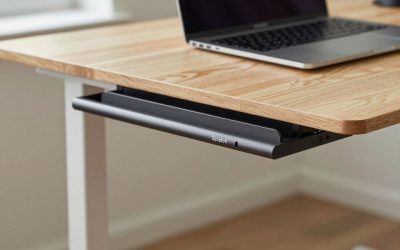
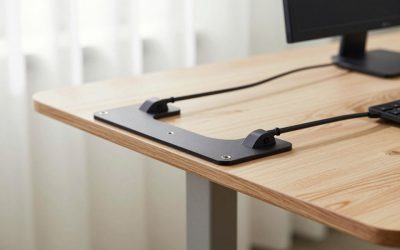
Check a dock’s charging wattage against your laptop’s actual power draw — a 65W dock won’t keep a power-hungry 16-inch laptop charged under full load, even though it’ll charge a smaller ultrabook fine. If the dock will also route cables down to a cable management spine for standing desk, factor that into which ports face which direction before mounting it under the desk.
The Apple Silicon display-count caveat
Base M1 and M2 MacBook Air and 13-inch Pro models natively drive only one external display, a limit set by the chip itself rather than by any dock’s specs — a Thunderbolt dock like the CalDigit TS4 won’t add a second native display to these specific models no matter how many ports it has. If you’re on one of these Macs and need two or more external monitors, a DisplayLink-based dock like the Plugable is the practical workaround, since it adds displays through software rather than the GPU’s native output. M1 Pro/Max and later Apple Silicon chips lift this restriction.
FAQ
Can I daisy-chain two monitors off one dock port instead of using two separate ports?
Some Thunderbolt and DisplayPort 1.4 monitors support daisy-chaining if they have a DisplayPort output in addition to the input, but this depends on both the monitor and the dock supporting MST (multi-stream transport) — check both specs before relying on it.
Will a docking station slow down my internet compared to connecting directly?
A dock’s Ethernet port generally performs identically to plugging directly into your router or switch, since it’s just passing the signal through; WiFi performance is unaffected either way since the dock doesn’t interact with your wireless connection.
How do I know if my laptop’s USB-C port actually supports Thunderbolt?
Check your laptop’s official spec sheet for the port explicitly labeled “Thunderbolt 3/4” rather than just “USB-C” — the connector shape is identical, but only Thunderbolt-certified ports deliver the full bandwidth and feature set that Thunderbolt docks are designed around.
Can I use the same dock with both a Windows laptop and a Mac at different times?
Most USB-C and Thunderbolt docks are cross-platform, but double-check display-count behavior on each machine separately — a dock that drives two monitors fine on a Windows laptop may be limited to one on a base Apple Silicon Mac due to that chip’s native display restriction, not the dock itself.
A dock that matches your laptop’s actual capabilities — not just its port shape — is what separates a desk that “just works” every morning from one with an intermittent second-monitor problem nobody ever fully diagnoses.
FAQ
Can I daisy-chain two monitors off one dock port instead of using two separate ports?
Will a docking station slow down my internet compared to connecting directly?
How do I know if my laptop’s USB-C port actually supports Thunderbolt?
Can I use the same dock with both a Windows laptop and a Mac at different times?
More from Amazon
Programs that pair well with the guide above. Offers and eligibility are set by Amazon and may change.
Free shipping on eligible items, Prime Video and more. Eligible new members can start with a free trial.
Start a Prime free trialAudiobooks and podcasts to listen to on the go. Eligible new members can start with a free trial.
Try Audible freeAd-free music streaming. Eligible new subscribers can start with a free trial.
Try Music Unlimited freeA free business account with business pricing and bulk-buying tools for work, shop or home office.
Create a business accountAs an Amazon Associate we earn from qualifying purchases.





Write Your Review
No reviews yet. Be the first to share your experience!