Key takeaways
- Monitor 1 (execution): primary chart on the left 60-70% of the screen, order entry and Level 2/time-and-sales stacked vertically on the right.
- Monitor 2 (research): a secondary-timeframe chart on top, watchlist and news feed split across the bottom half.
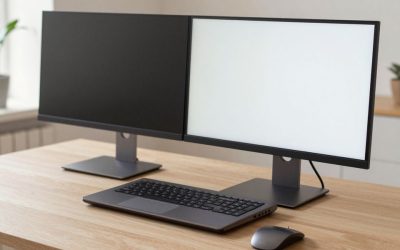
A dual-monitor trading desk isn’t just two screens bolted side by side. Done right, it separates execution from research, keeps your eyes moving in a predictable pattern, and shaves seconds off decisions that matter. Here’s how to actually set one up, not just buy the hardware.
Step 1: Pick the right monitor combination
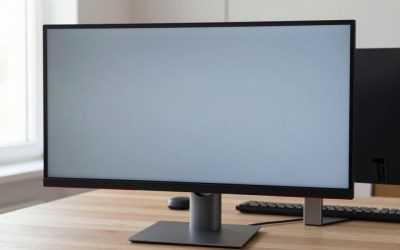
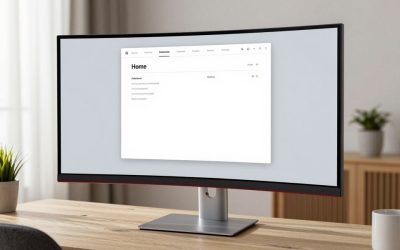
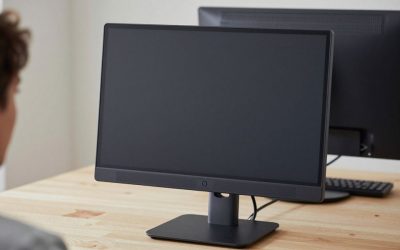
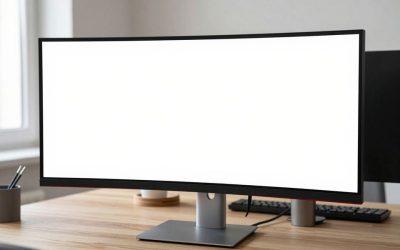
For most retail traders, two 27-inch 1440p monitors are the sweet spot — enough pixel density to read small price ladders without the bezel gap of an ultrawide-plus-secondary setup. If you’re tight on desk depth, two 24-inch 1080p panels still work fine for order entry and a watchlist. If you want one “hero” screen for charting, a 34-inch ultrawide paired with a single secondary vertical monitor for news/Level 2 is the premium route.
Check your GPU or laptop’s output count before buying — most integrated graphics support two external displays, but some laptops cap out at one unless you use a dock with DisplayLink (more on that below).
For a specific starting point, the LG 27GP850-B is a frequently recommended 27-inch 1440p, 165Hz IPS panel that balances price and motion clarity well for two-screen trading setups, while the Dell S2721DGF is a similar-class alternative worth cross-shopping if the LG is out of stock or priced above budget.
Step 2: Get the cables and ports right
Use DisplayPort 1.4 or HDMI 2.1 cables if you’re running 1440p at 144Hz or higher — older HDMI 1.4 cables will silently cap your refresh rate. If your laptop only has USB-C/Thunderbolt, a USB-C docking station dual monitor solves the port shortage and lets you charge the laptop at the same time.
Step 3: Mount and position the monitors
- Primary monitor: top edge at or just below eye level, roughly 20-30 inches from your face.
- Secondary monitor: angled 15-30 degrees toward you so you’re not twisting your neck to read it all day.
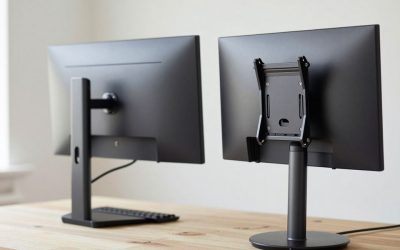
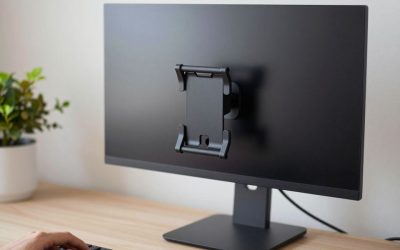
- Use a dual monitor arm mount instead of stock stands — it frees desk depth for a keyboard, mouse, and notepad, and lets you fine-tune height in seconds when you swap between sitting and standing.
Step 4: Configure your OS display settings
On Windows 11, go to Settings > System > Display, then drag the monitor icons to match their physical left-right position on your desk — this is what makes your mouse cursor move naturally between screens instead of teleporting to the wrong edge. Set scaling to 100% for 1080p panels and 125% for most 1440p panels to avoid blurry text.
On macOS, the same logic applies under System Settings > Displays > Arrange. Hold the layout that matches your desk, not just what looks tidy in the settings window.
Step 5: Build your screen layout
A simple, repeatable layout beats a clever one. A common split that works for day trading:
- Monitor 1 (execution): primary chart on the left 60-70% of the screen, order entry and Level 2/time-and-sales stacked vertically on the right.
- Monitor 2 (research): a secondary-timeframe chart on top, watchlist and news feed split across the bottom half.
Keep the same layout every session. Muscle memory for where information lives is worth more than a “smarter” arrangement you have to relearn daily.
Step 6: Don’t skip cable management
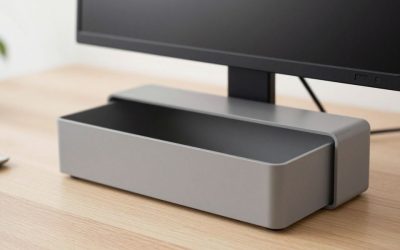
Two monitors plus a dock means a lot of cables fighting for the same six inches behind your desk. Group power cables separately from video cables, leave slack near the monitor arm’s pivot points so cables don’t yank taut when you adjust height, and route everything through a under desk cable management tray so your feet — and your trading focus — stay clear of cord clutter.
Common mistakes to avoid
- Buying mismatched panels (different refresh rates or color profiles) and wondering why colors or motion look inconsistent across screens.
- Mounting both monitors at the same height when one is meant for quick-glance info — your neck will tell you about it by week two.
- Skipping the monitor arm and stacking books under a stand “for now.” It never gets fixed later.
Step 7: Protect against power loss during market hours
A dropped connection during a live position is the one failure mode a trading desk can’t shrug off. A battery backup like the APC Back-UPS Pro 1500VA keeps your router, modem, and PC running through a brief outage long enough to close or adjust a position manually, and conditions the power feeding your monitors so brownouts don’t cause flicker or unexpected shutdowns. Pair it with a wired ethernet connection rather than relying solely on WiFi during active trading hours — WiFi is one more point of failure you can remove entirely for a few dollars in cable.
FAQ
Do I need matching monitor brands for a trading setup?
Not strictly, but matching refresh rate and panel type (both IPS, both VA, etc.) avoids the inconsistent color and motion feel that comes from pairing mismatched panels, which is more noticeable in a side-by-side trading layout than in general use.
Is a triple-monitor setup overkill for a retail trader?
It depends on your strategy — scalpers and day traders juggling multiple tickers often benefit from a third screen for an additional watchlist or news feed, but swing traders checking in a few times a day usually get diminishing returns past two screens.
How much desk depth do I need for a dual-monitor arm setup?
Most dual monitor arms need at least 24-28 inches of desk depth to position both screens at a comfortable viewing distance without the arms colliding when adjusted, plus clearance behind the desk for the clamp mechanism itself.
Should I run my trading platform on a laptop or a dedicated desktop?
A dedicated desktop generally handles multiple real-time data feeds and charting windows more reliably over long sessions, but a modern laptop with a capable dock covers most retail trading needs if desk space or portability matters more to you.
A dual-monitor trading desk is really a workflow decision disguised as a hardware purchase. Get the physical setup right once, and the software layout stays consistent every single trading day.
FAQ
Do I need matching monitor brands for a trading setup?
Is a triple-monitor setup overkill for a retail trader?
How much desk depth do I need for a dual-monitor arm setup?
Should I run my trading platform on a laptop or a dedicated desktop?
More from Amazon
Programs that pair well with the guide above. Offers and eligibility are set by Amazon and may change.
Free shipping on eligible items, Prime Video and more. Eligible new members can start with a free trial.
Start a Prime free trialAudiobooks and podcasts to listen to on the go. Eligible new members can start with a free trial.
Try Audible freeAd-free music streaming. Eligible new subscribers can start with a free trial.
Try Music Unlimited freeA free business account with business pricing and bulk-buying tools for work, shop or home office.
Create a business accountAs an Amazon Associate we earn from qualifying purchases.
Write Your Review
No reviews yet. Be the first to share your experience!