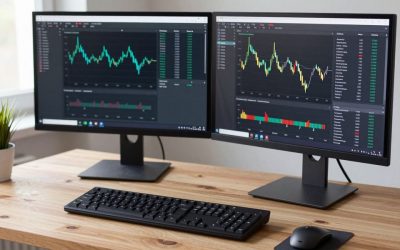
If your “desk setup” is a laptop that travels with you, a docking station is what turns it into a real workstation at home — one cable in, two monitors, keyboard, mouse, and charging all live instantly. Here’s how to set it up without fighting driver issues or discovering your laptop can’t actually drive two 4K screens.
Step 1: Check what your laptop can actually output
Before buying anything, look up your laptop’s GPU/chipset spec sheet for “maximum external displays.” Many ultraportables with integrated graphics support exactly two external monitors over a single Thunderbolt or USB4 port — but some budget laptops cap at one unless the dock uses DisplayLink technology, which uses software compression to add virtual displays beyond the GPU’s native limit.
Step 2: Choose the right dock type
- Thunderbolt 4 / USB4 docks (e.g. a CalDigit TS4 docking station) give native video pass-through with no driver overhead — best if your laptop supports Thunderbolt and you want maximum reliability with high refresh rates.
- DisplayLink docks (e.g. a Plugable DisplayLink docking station) install their own driver and can drive multiple monitors even from laptops that natively support only one — the tradeoff is a small amount of latency that’s noticeable in fast-motion gaming but invisible in office work.
Step 3: Connect in the right order
- Install the dock’s driver software first if it’s a DisplayLink model — plugging in monitors before the driver exists is the #1 cause of “my second monitor isn’t detected” complaints.
- Connect monitors to the dock, then connect the single cable from dock to laptop.
- Plug the dock into power before connecting your laptop if the dock also charges it — this avoids the laptop briefly drawing from battery during the handshake.
Step 4: Arrange your displays correctly
Open Settings > System > Display on Windows (or System Settings > Displays on macOS) and drag each monitor icon to match where it physically sits relative to your laptop screen. If you’re closing the laptop lid and working external-only, enable “do nothing when lid is closed while plugged in” in your power settings first, or the whole setup will go to sleep the moment you shut it.
Step 5: Set resolution and scaling per monitor
Each monitor should be set to its native resolution, not the laptop’s default. Mixed-DPI setups (a 4K monitor next to a 1080p one) are notorious for blurry text in Windows — set scaling independently per display rather than using one global scale.
Step 6: Tidy the cable situation
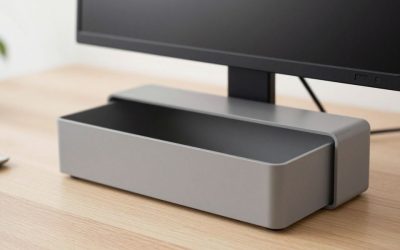
A dock usually means five or six cables converging in one spot: two monitor cables, one dock-to-laptop cable, a power brick, and peripherals. A small cable management box under or beside the dock keeps that cluster from turning into a tangle every time you unplug the laptop to take it to a meeting.
Step 7: Know the Apple Silicon Mac caveat
Base M1 and M2 MacBook Air and 13-inch Pro models natively drive only one external display, period — no cable or dock spec fixes that limitation, because it’s set by the chip itself. If you need two external monitors on one of these Macs, you need a DisplayLink-based dock (like the Plugable above) to add the second display through software rather than the native GPU output; M1 Pro/Max and later chips lift this restriction and support two or more native external displays depending on model.
If budget allows and you want a dock with a few more ports than the TS4 for a mixed Mac/Windows household, the Anker 575 USB-C Docking Station is a reasonably priced 13-in-1 alternative that covers dual 4K output on supported laptops along with Ethernet, SD card, and extra USB-A ports in one unit.
Troubleshooting checklist
- Monitor flickers or drops signal: usually a cable rated below the resolution/refresh you’re running — swap to a certified high-speed cable.
- Only one external monitor works: your laptop’s native GPU output limit — you need a DisplayLink-based dock, not a straight Thunderbolt pass-through one.
- Dock won’t charge the laptop: check the dock’s wattage rating against your laptop’s charger — many budget docks top out at 65W, which won’t keep a 16-inch laptop charged under load.
FAQ
Can one dock charge my laptop and drive two monitors at the same time?
Yes, as long as the dock’s power delivery rating meets or exceeds your laptop’s charger wattage — check this spec specifically, since many budget docks advertise video output prominently but bury a lower charging wattage in the fine print.
Do I need a Thunderbolt dock if my laptop only has USB-C (not Thunderbolt)?
No — a Thunderbolt-specific dock like the CalDigit TS4 won’t deliver its full performance on a plain USB-C port, so a DisplayLink dock or a USB-C dock rated for your port’s actual bandwidth is the better match.
Why does my external monitor go black for a second when I move my laptop?
This is usually the dock renegotiating the display connection after a brief physical jostle of the cable — check that the dock-to-laptop cable is fully seated, and consider a shorter, higher-quality cable if it happens often.
Is it bad to leave a laptop docked and charging all day, every day?
Modern laptop batteries handle staying plugged in in continuous use without meaningful long-term harm, especially with built-in charge-management features; if you’re concerned, many laptops offer a battery-health or charge-limiting setting in their power software.
Once it’s dialed in, a dock-plus-dual-monitor setup gives you the best of both worlds: a laptop you can grab and go, and a full workstation the moment you sit back down at your desk.
FAQ
Can one dock charge my laptop and drive two monitors at the same time?
Do I need a Thunderbolt dock if my laptop only has USB-C (not Thunderbolt)?
Why does my external monitor go black for a second when I move my laptop?
Is it bad to leave a laptop docked and charging all day, every day?
More from Amazon
Programs that pair well with the guide above. Offers and eligibility are set by Amazon and may change.
Free shipping on eligible items, Prime Video and more. Eligible new members can start with a free trial.
Start a Prime free trialAudiobooks and podcasts to listen to on the go. Eligible new members can start with a free trial.
Try Audible freeAd-free music streaming. Eligible new subscribers can start with a free trial.
Try Music Unlimited freeA free business account with business pricing and bulk-buying tools for work, shop or home office.
Create a business accountAs an Amazon Associate we earn from qualifying purchases.



Write Your Review
No reviews yet. Be the first to share your experience!